
Logging in using BRIA SOFTPHONE with a PERSISTENT CONNECTION
-
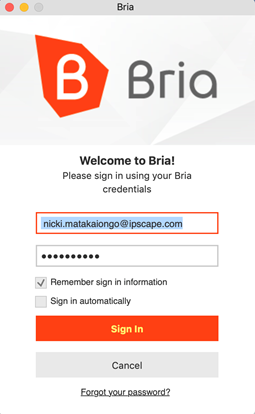
Sign in to your softphone
-
Login to your Agent Toolbar
-
Navigate to: https://yourURL.ipscape.com.au/agenttoolbar (provided by your administrator)
-
Enter your username and password
-
Select ‘System calls Agent’
-
Enter your Bria extension number
-
Tick ‘Connection Persistence’
-
Press ‘Start’
-
-
The system will call on your softphone -
-
answer the call:

-
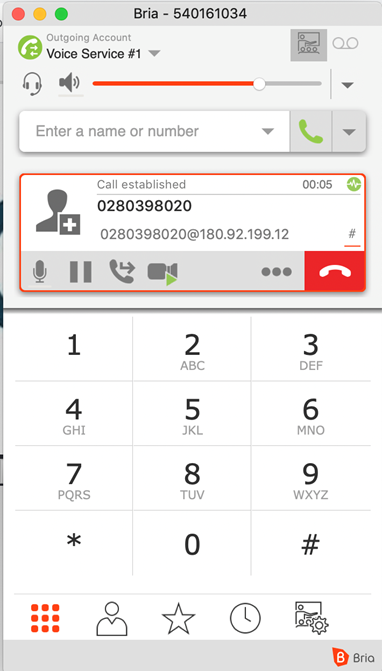
Your softphone will pop on your screen
-
Minimise it by selecting the orange button (top left)
-
After you have answered the call, the softphone session will remain open for the duration of your agent login
-
You will be logged in and in the Pause state (not ready to receive calls)
-
Select ‘Un-Pause’ to make yourself available to a receive call
-
Logging in using BRIA SOFTPHONE with a NON-PERSISTENT CONNECTION
-
Sign in to your softphone
-
Login to your Agent Toolbar
-
Navigate to: https://yourURL.ipscape.com.au/agenttoolbar (provided by your administrator)
-
Enter your username and password
-
Select ‘System calls Agent’
-
Enter your Bria extension number
-
Untick ‘Connection Persistence’
-
Press ‘Start’
-
-
Press ‘Un-Pause’ when you are ready to take customer calls
-
When a call comes through the system will call on your softphone -
-
answer the call:
-
Your softphone will pop on your screen
-
Minimise it by selecting the orange button (top left)
-
After you have answered the call, the softphone session will remain open until the call is terminated
-