
Chat Surveys
Overview
The Chat Survey is where you will create the Pre-chat, Post-chat and After-hours survey presentation for customers to obtain specific information. Below is an overview of the Chat Survey page:
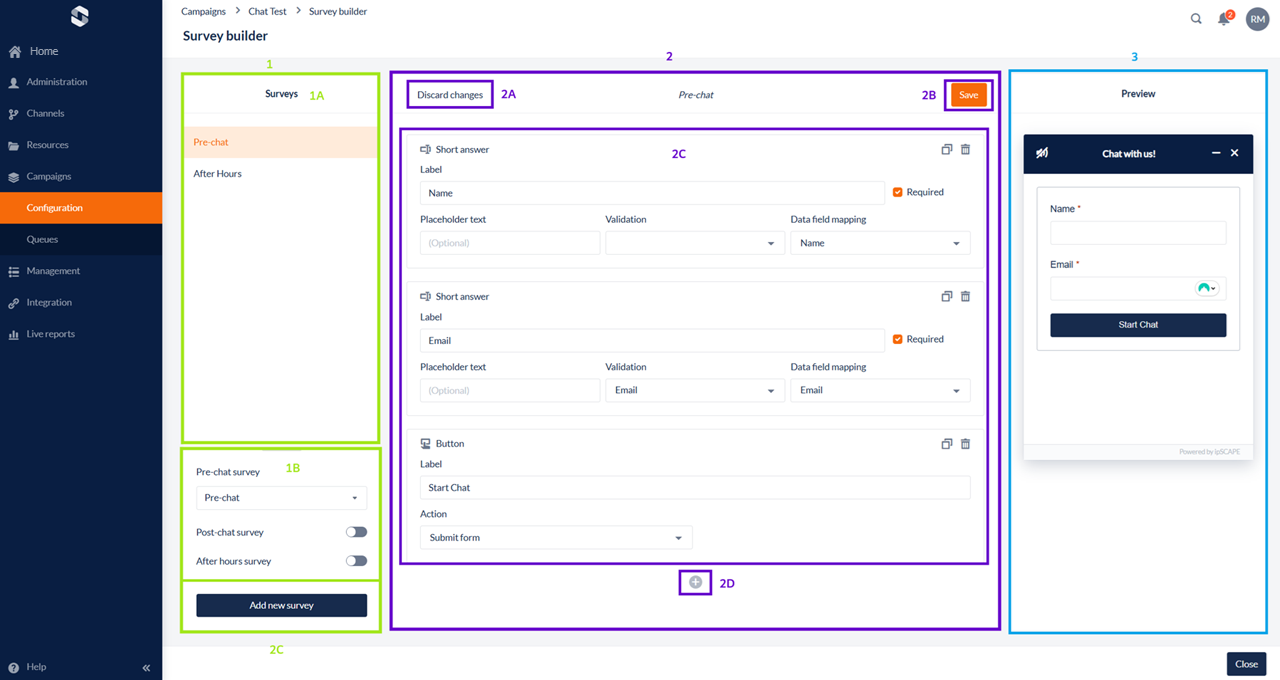
Section | Setting | Description |
|---|---|---|
| A. Surveys | Displays a list of the surveys created in the current Campaign |
B. Post-chat survey After-hours survey |
From this drop-down menu, you can choose the page to be displayed to the end-user on your web page when the chat is ended. From this drop-down menu, you can choose the page displayed to end-users outside of business hours | |
D. Add new survey | This option creates a new survey page that can be assigned to the Pre-chat, Post-chat or After-hours options |
Section | Setting | Description |
|---|---|---|
| A. Discard changes | This option will let you remove all changes you have added or applied to the design page up until its last save. If there have been no changes this button will be greyed out. |
B. Save | This option will save the changes you have made. If there have been no changes this button will be greyed out. | |
C. Objects | This is where the objects you select are displayed. | |
D. Add Object | This allows you to add another object to the page. To learn more about the Objects that can be used in the Survey, click here. |
Section | Description |
|---|---|
| This screen will show how the chat survey will be displayed to end-users on your web page. |
1. Chat Objects
Multiple Objects can be used in a Chat survey to obtain information from your end-users. Below are all the objects that can be used and their purpose.
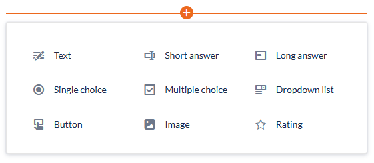
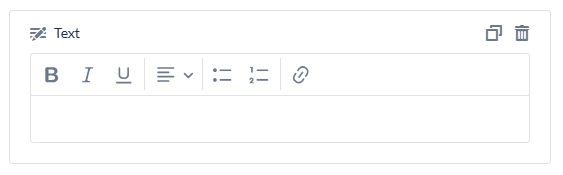
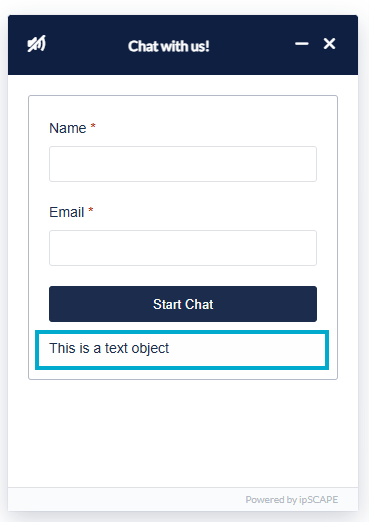
This Object is designed for display text only, with basic editing functionality for visual design, including Bold, Italic, Underline, positioning, forms and Hyperlinks.
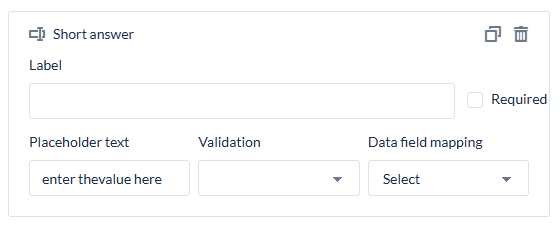
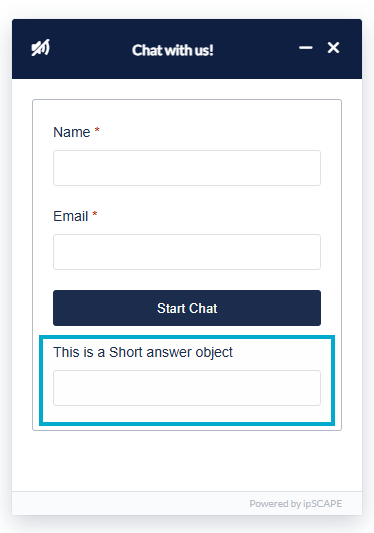
This Object is designed to obtain information from a client that may only require up to 5 words, like a Name, Number, Email, Address or Account number. See descriptions for the options within this object below.
Setting | Description |
|---|---|
Label | Title of the Object |
Required | Ticking this box forces the Client to enter in a value before proceeding to the next step |
Placeholder text | Grey text advising the client what to enter |
Validation | Allows you to ensure the correct information is provided (None, Numerical, URL or Email) |
Data Field Mapping | Allows you to link the Values provided to the Activity fields for both display and Reporting purposes |
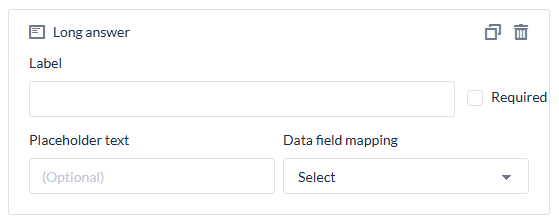
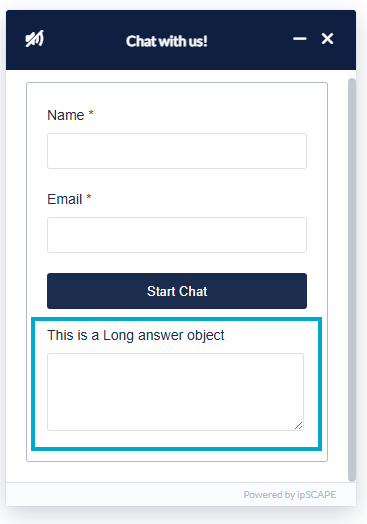
This object is designed to obtain information from a customer that may exceed 5 words up to a maximum of 225 characters. See descriptions for the options within this object below.
Setting | Description |
|---|---|
Label | Title of the Object |
Required | Ticking this box forces the Client to enter in a value before proceeding to the next step |
Placeholder text | Grey text advising the client what to enter |
Data Field Mapping | Allows you to link the Values provided to the Activity fields for both display and Reporting purposes |
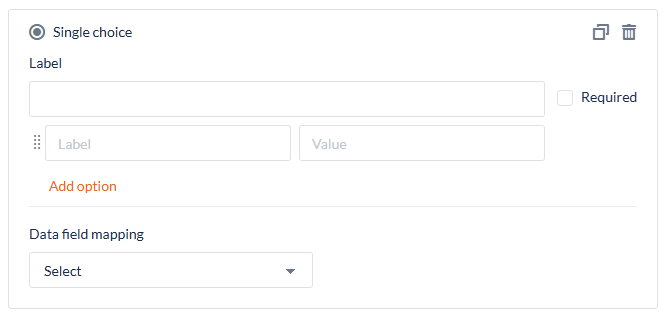
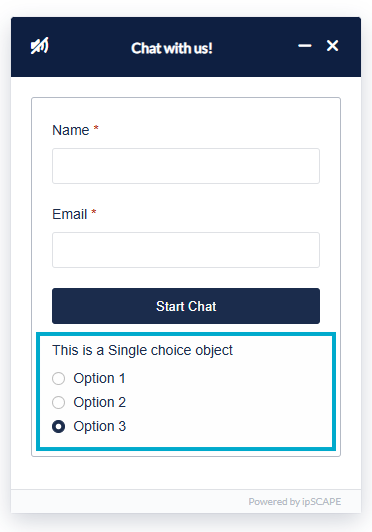
This Object will create a radio button object that provides a single choice for your end-users to select. See descriptions for the options within this object below.
Setting | Description |
|---|---|
Label | Title of the Object |
Options (Label/Value) | Here, you can create the options you want your end-users to choose from. The label is what is displayed on the Survey page, and the Value is what is obtained by the Datafield. |
Data Field Mapping | Allows you to link the Values provided to the Activity fields for both display and Reporting purposes |
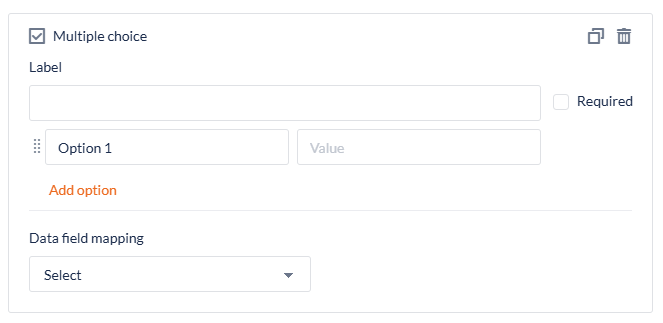
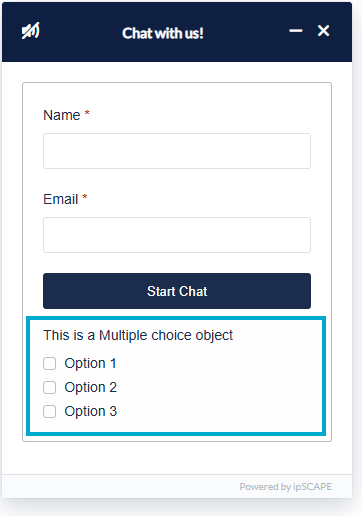
This object will provide multiple check boxes for your end-users to select. See descriptions for the options within this object below.
Setting | Description |
|---|---|
Label | Title of the Object |
Options (Label/Value) | Here, you can create the options you want your end-users to choose from. The label is what is displayed on the Survey page, and the Value is what is obtained by the Datafield. |
Data Field Mapping | Allows you to link the Values provided to the Activity fields for both display and Reporting purposes |
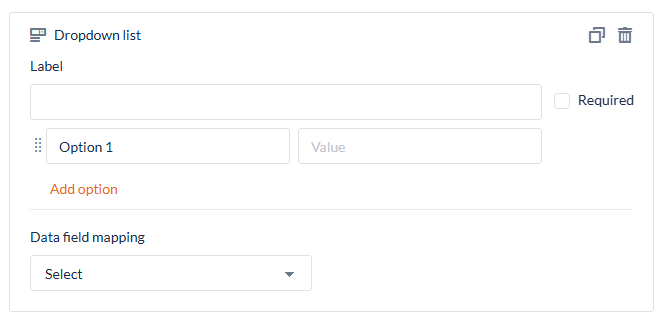
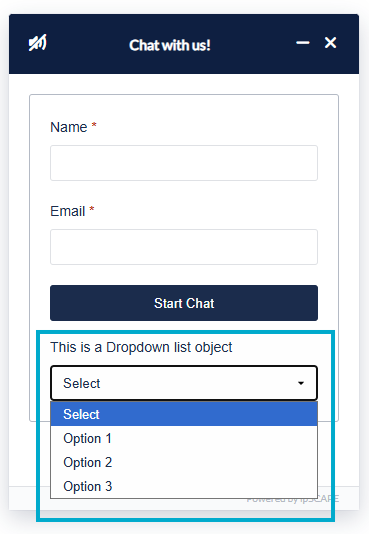
This object allows your end-users to choose from a list of options. See descriptions for the options within this object below.
Setting | Description |
|---|---|
Label | Title of the Object |
Options (Label/Value) | Here, you can create the options you want your end-users to choose from. The label is what is displayed on the Survey page, and the Value is what is obtained by the Datafield. |
Data Field Mapping | Allows you to link the Values provided to the Activity fields for both display and Reporting purposes |
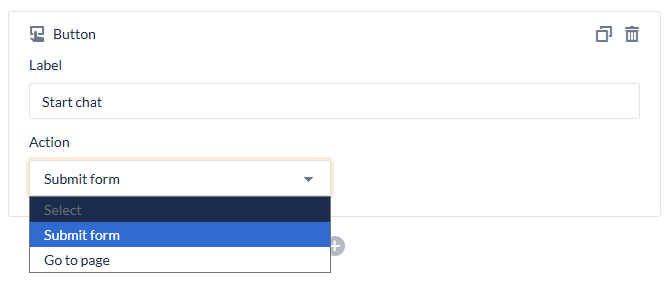
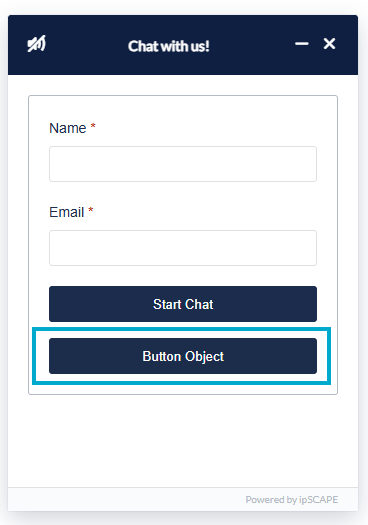
This object provides a few options:
Setting | Description |
|---|---|
Label | Title of the Object |
Action |
|
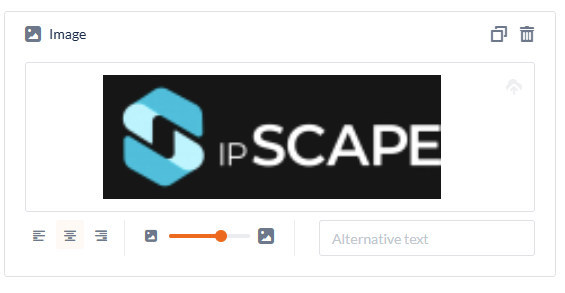
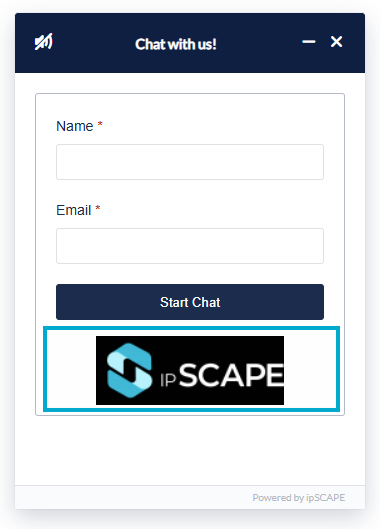
This object allows you to insert an image into the survey page from the files module or from your local device. Select “Select File” to attach the image.
Once the image has been selected, you can choose the positioning and size.

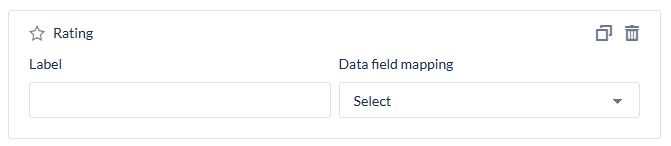
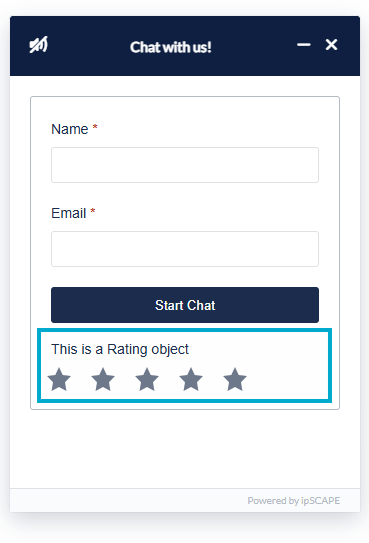
This object is to obtain a star rating once a chat has been completed. See descriptions for the options within this object below.
Setting | Description |
|---|---|
Label | Title of the Object |
Data Field Mapping | Allows you to link the Values provided to the Activity fields for both display and Reporting purposes |

All Objects have the options to duplicate and delete.