
Maintain Position in Queue (MPIQ)
Overview
Call Centre Managers can configure workflows that give their customers the option to request a call back from the Agent but still maintain their position in the queue after they have hung up the phone.
If a caller selects this option, IPscape will generate an automated call-back to their nominated phone number, play them an announcement when the call connects, and then connect them to the next available agent.
The Maintain Position in Queue (MPIQ) workflow object is designed to call back the caller ID (CLI) presented with the call, however if the caller is calling from a private/withheld number, the call-back will fail as there is no number to dial.
Callers may also be calling from an office PABX that sends a main phone number, so the potential is there for the callback to go to an incorrect number as we do not know the callers’ PABX extension/direct in dial phone number.
For the above reasons, it is a good practice to ask callers to enter their preferred call-back phone number and confirm it, allowing them to re-enter if it is incorrect.
MPIQ is typically used in conjunction with the Interactive Join Queue (IJQ) workflow object, to ensure that MPIQ is only offered to those callers who will sit in queue, or have sat in queue, for a predetermined length of time.
1. Example Scenario
If a CLI is present an option to select 1 to receive a callback on the current number
If a CLI is present an option to select 2 to change the number
Else, if the CLI is anonymous an option to enter a phone number
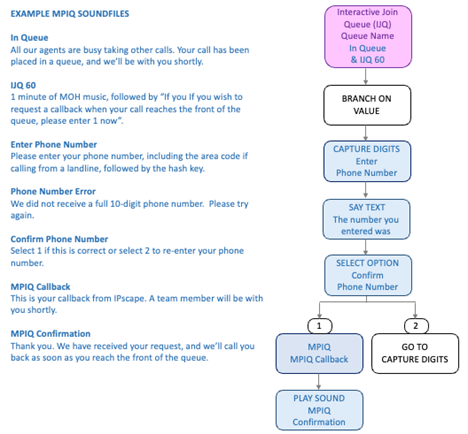
Below is an example design for an MPIQ Workflow:
It is a good practice to use the same text to speech persona for all soundfiles for continuity, as the SAY TEXT workflow object uses Text-to-Speech (TTS) to read the callers’ phone number back to them.
2. Add Workflow Object
Open the Workspace.
Select Workflows from the Resources menu.
Select a workflow from the list displayed (you can also create a new one). A schematic representation of the workflow is displayed.
Click the Add Workflow Object button. The New Workflow Object dialog opens.
Select Maintain Position in Queue from the drop-down selection list.
Definition of Queue Position
When you are the first person in the Queue AND an agent is available when the callback is made
When one call is in the Queue ahead of you, the callback will occur
When the Maintain Position in Queue object is included in the workflow, enter the following details:
Field | Description |
|---|---|
Workflow object title | Enter a meaningful name for your new object. |
Threshold queue position | The number in queue before the caller when the callback is made |
Callback Announcement | Announcement that is played to the Customer when we connect and put them in the Queue |
Queue | Shows the Join Queue or IJQ Object in the workflow |
Phone Number | Defined as %activities: activity_source% |
Maximum Retries | This is the number of times the Dialler retries if they don't connect the first time |
Answering machine detection (AMD) |
If AMD is turned on, when answering the callback, Agent should ensure they say "Hello" otherwise the system will disconnect you. |

If the Customer misses the callback, they will go to the back of the current queue and the Dialler will retry when they come back to the head of the Queue.

A MPIQ request will be Cancelled if not called back after 10 hours. This includes cases where the MPIQ request is made near the end of contact center operational hours when all agents log out and a call back is unable to be made until next day or week.
3. Additional Notes
If you are capturing digits in the original workflow, (e.g. to pass to CRM), the MPIQ will store the digits that have been captured and present them to the Agent when it connects. Agent Callback and Queue Callback will be considered fresh interactions and the captured digits will not be retained.
If a "Maintain Position in Queue" is outstanding from the previous day, the call will be dialled as soon as an Agent logs in and becomes available ("Ready" state). Note that the schedule associated with the Campaign is not checked. If a Campaign opens at 09:00 and an Agent logs in and makes themselves available at 07:00, the first outstanding MPIQ outstanding from the previous date will be called at 07:00.
If you wish to let Agents know that the inbound call is from an MPIQ Callback, you can add a "Branch on Value" that can never be reached with another Join Queue Object routing to the same queue but with an MPIQ whisper. You can then use this as the Queue in the MPIQ object.
A webhook Trigger can be used which is triggered based on the status and/or attempts of a MPIQ. For example, a trigger can be created to send a notification to a manager for every payload returned with a “failed” Status, or when the attempts field equals the maximum attempt threshold set in the configuration.